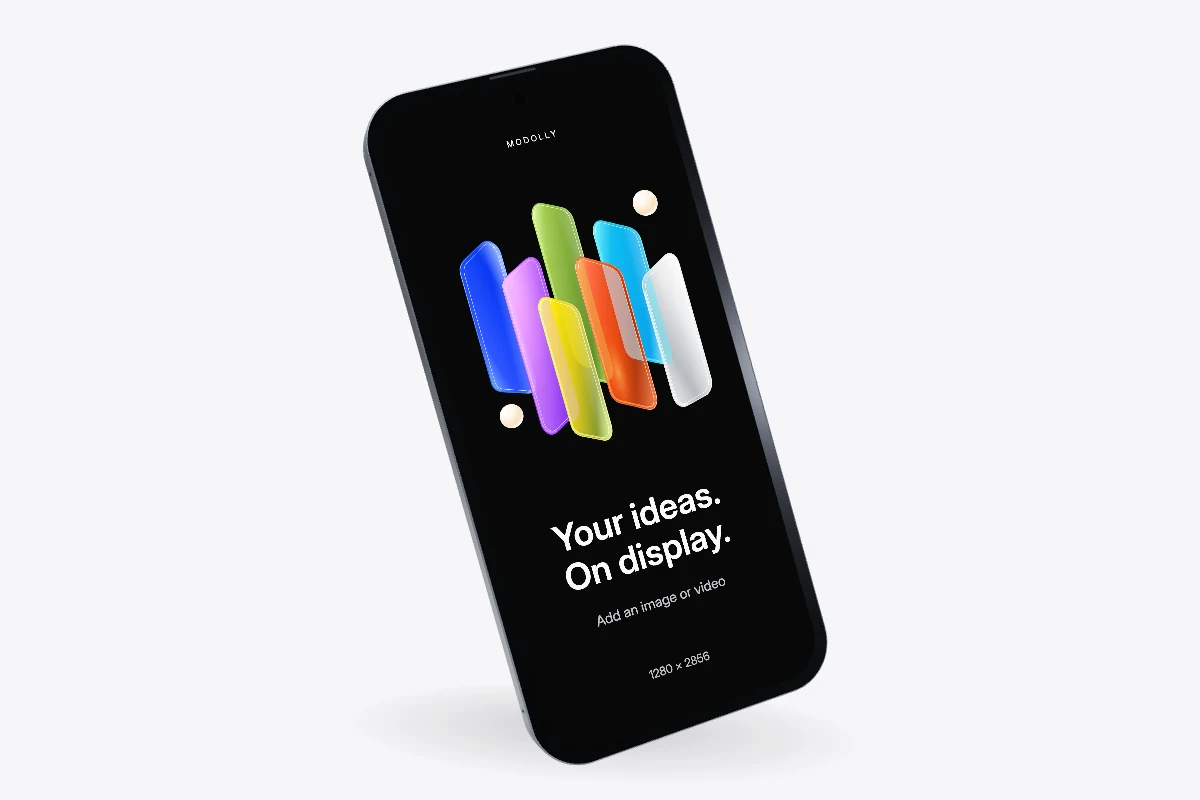
Your design stays yours.
Projects and imported media stay in this browser. Account access and platform models use online services.
Save a separate backupCreate 3D mockup images and videos with your own app and website designs. All in your browser.
Start with a free template. No installation needed.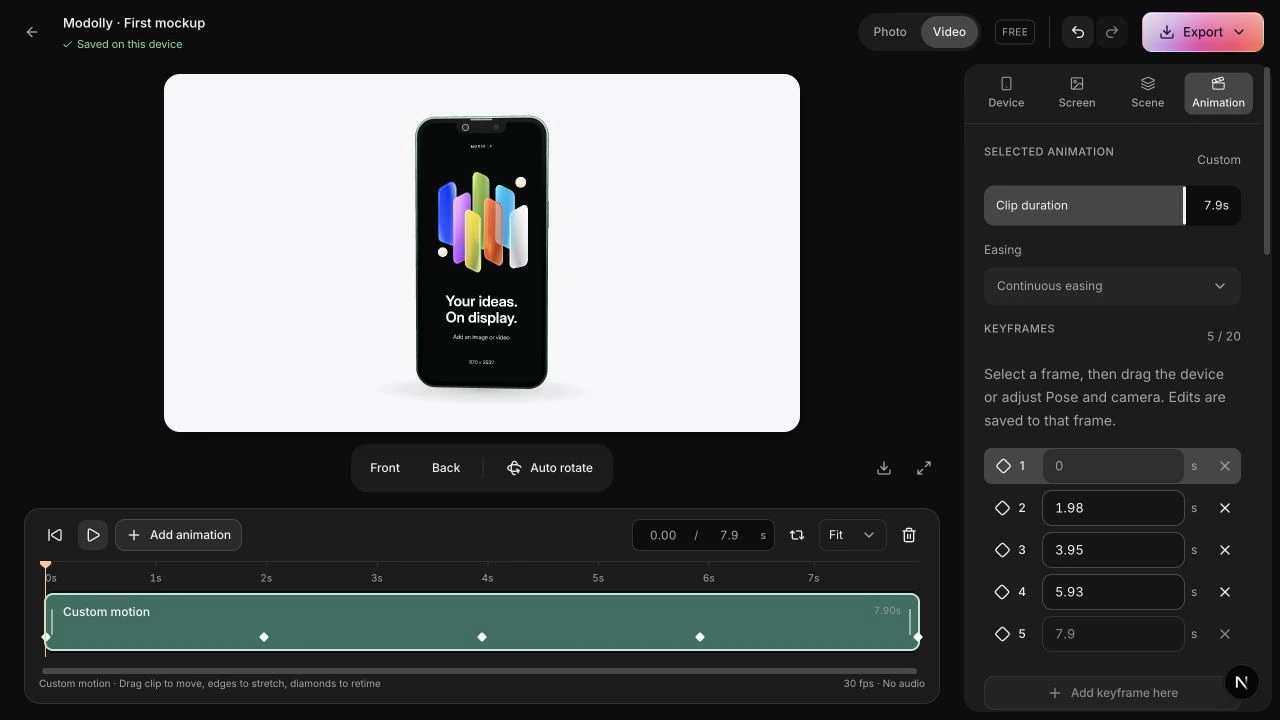
Find an angle that brings your work to life. A close-up, a slow reveal, a whole new perspective.
A six-second iPhone turn with the PRISM default wallpaper. Silent demo.
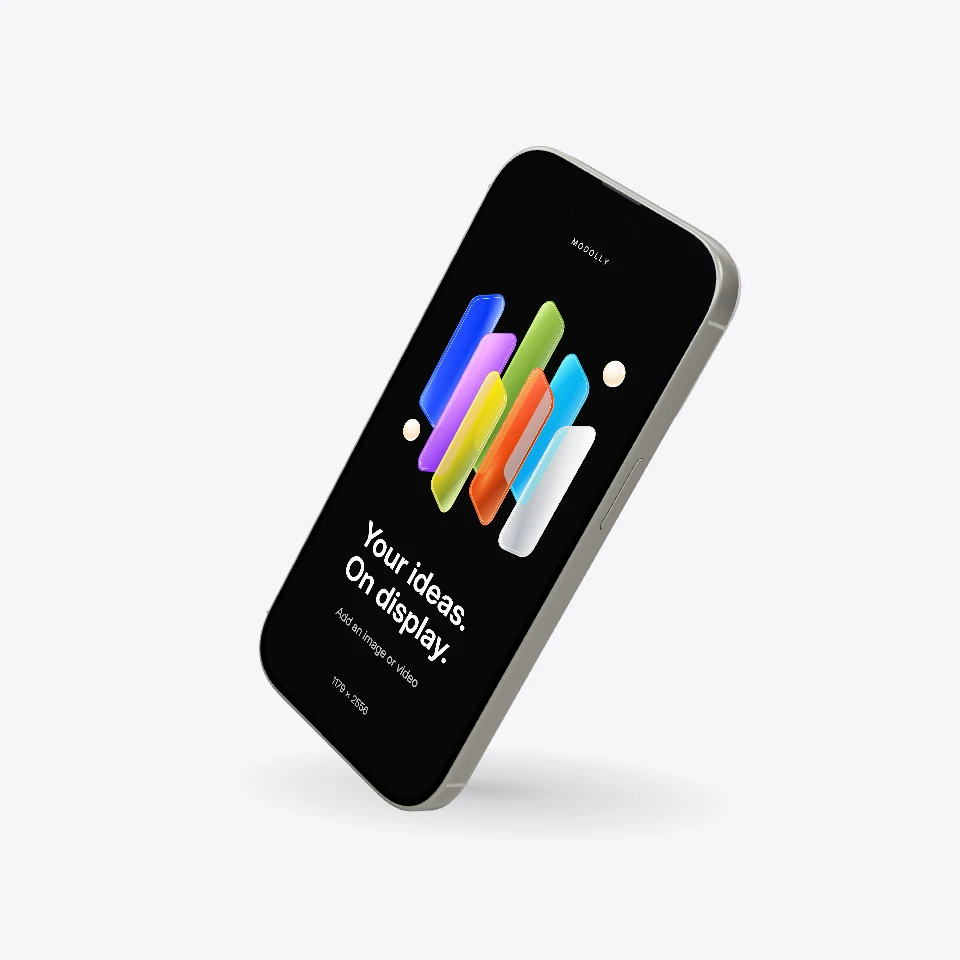
Adjust the finish and camera to find your angle.
Start with a template, then make it yours. The controls stay familiar, even when the results look anything but.
View the quick start guideBring a screenshot or recording into your mockup.
Short visual walkthroughs of the Modolly editor. No sound; captions included.
From the app you’re launching to the website you’ve just finished. Put your work on the right screen.
From the first angle to the final frame. Explore the tools available in Modolly today.
See the tools in actionStart with a motion preset. Shape it with camera moves, timing and keyframes. Eight-second silent demo.
Projects and imported media stay in this browser. Account access and platform models use online services.
Save a separate backup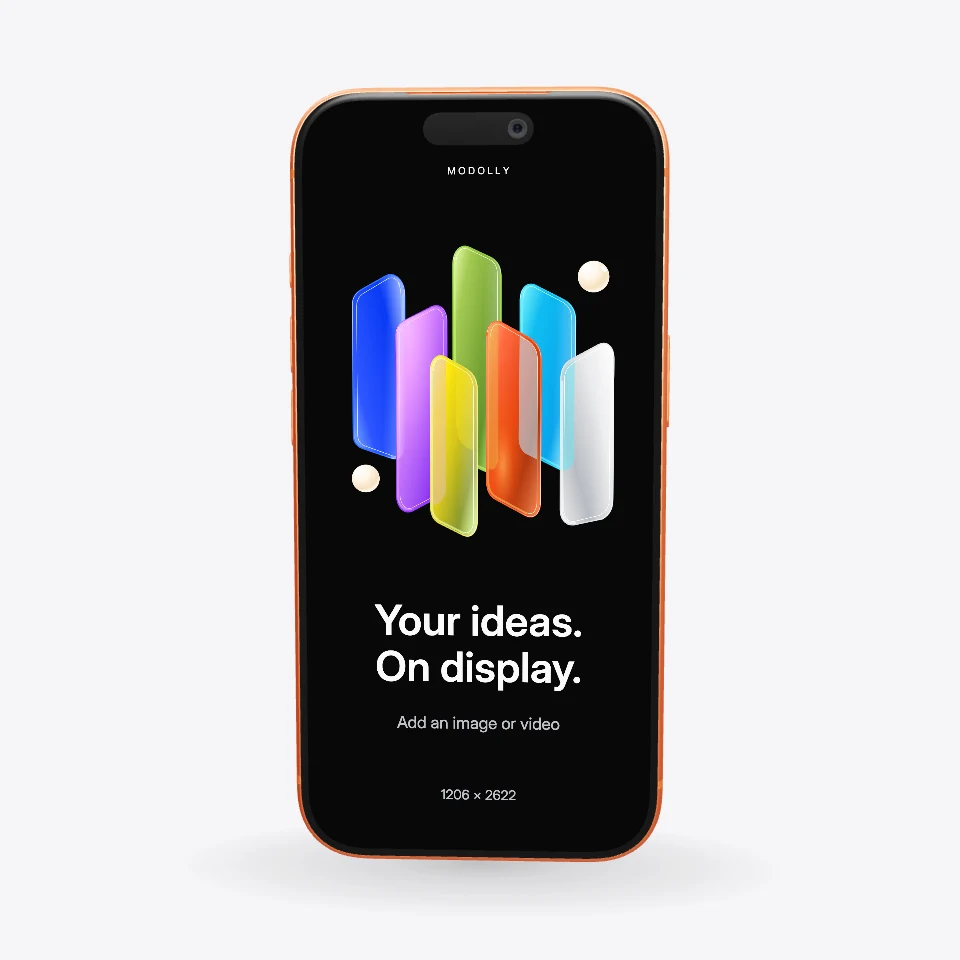
Choose a color. Dial in the screen brightness.
Pro exports PNG up to 7,680 px and 8K MP4 on compatible devices. Transparent PNG included.
Explore export options
Control the angle, zoom and field of view.
Adjust and animate the lid on supported laptops.
Rotate your device and choose the canvas ratio for your next presentation.
Adjust shadows, reflections and the lighting environment.
These features are planned and aren’t available yet. Scope and release dates are still to be confirmed.
A stripped-back finish that puts the interface first.
Compose a consistent set of store screenshots.
Bring sound into your exported animations.
A shorter path from your frame to a mockup.
A dedicated way to present your work live.
Bring a live phone screen into the scene.
Place text and callouts inside your scene.
You already have the design. Give it a setting without building a scene from scratch.
Phones, tablets, laptops and device compositions. Choose a starting scene, drop in your screen, and get to the part that’s yours.
Find your starting point
Drag to find an angle. Import a screenshot or recording. Use a motion preset when the scene needs to move.
Watch the three stepsTry the workflow with Free templates and exports. Choose Pro when you need more devices or higher-resolution output.
Compare plansYour screen, device finish, camera and motion make the scene your own. Keep refining until it feels like your work.
Explore the controlsYou’ve done the hard part. Give your design the setting it deserves.
Start creating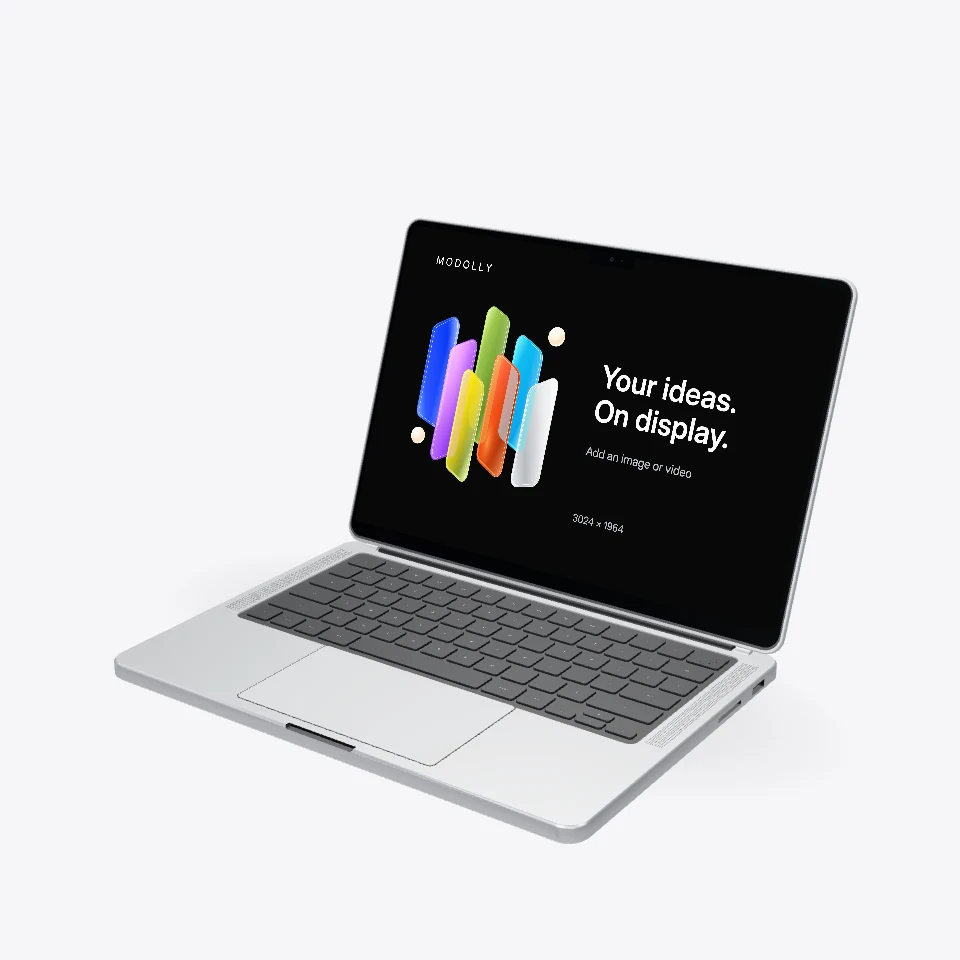
Projects, imported pictures, recordings and thumbnails stay in this browser on this device. They are not uploaded or automatically synced. Your account, subscription and the platform model catalog are online. Models still need an internet connection to load.
Use Export project backup in the editor or Export project file in the Projects menu. Keep the .modolly file somewhere safe. In Projects, choose Import project file to restore it as a new project. Back up before clearing browser data or changing websites, browsers or computers. Logging in on another device does not transfer local projects.
MP4 is rendered frame by frame on your device. Your browser needs WebCodecs and an H.264 or H.265 encoder that supports the selected size. Keep the tab visible and close other graphics-heavy tabs. Use the lower-resolution option if a check or export fails. PNG remains an alternative. An HEVC export needs a compatible video player; smaller H.264 exports have broader playback support.
Your local projects, media and backups remain on your device. Pro models require an active membership to load and edit. Free models remain available. You can manage renewal and view the current subscription status in Account and billing.