1
Start with a tablet scene
Open Templates and filter by Tablets. Choose an iPad model and scene that match your intended presentation. Check the plan label before creating the project.
Bring a tablet app, illustrated page or editorial layout into a 3D iPad scene. Use the larger screen to present details clearly, then shape the angle and background around your work.
Browse templatesChoose a scene and check its Free or Pro label before starting.
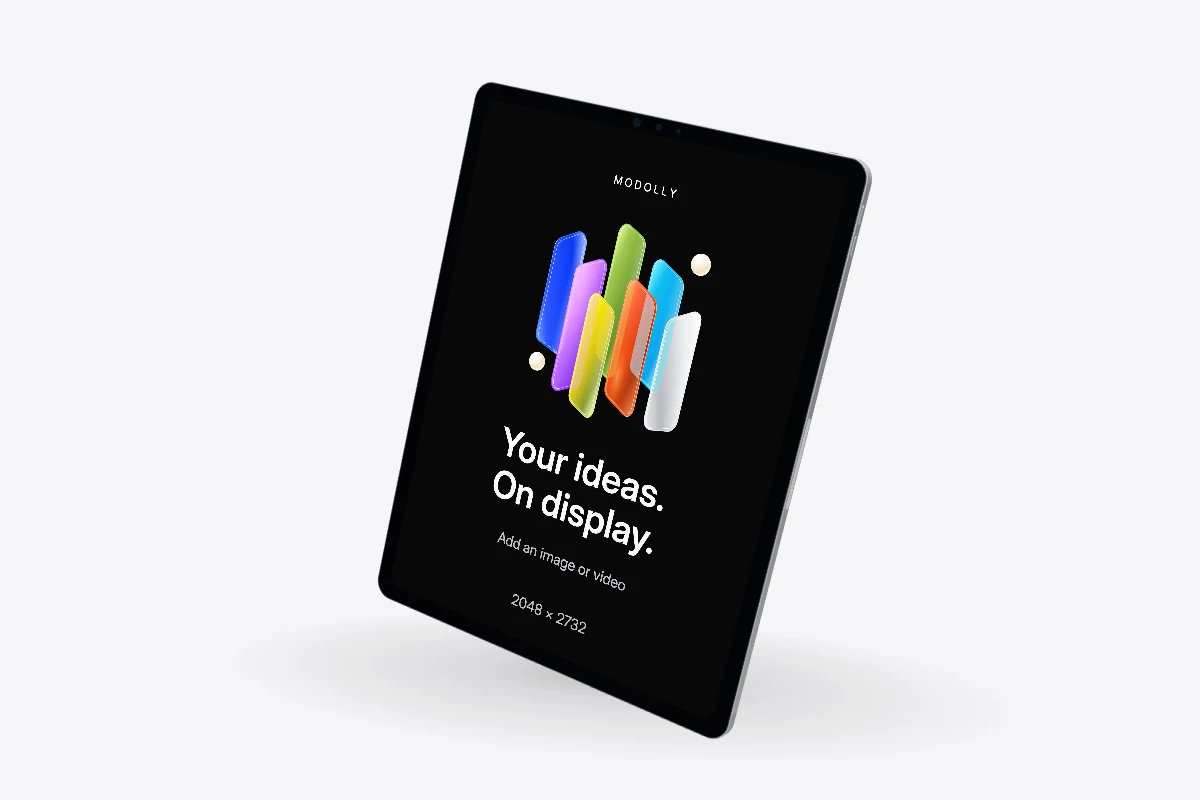
Open Templates and filter by Tablets. Choose an iPad model and scene that match your intended presentation. Check the plan label before creating the project.
Export your interface or artwork as PNG, JPG or WebP, or use an MP4 recording. Match its orientation to the scene and inspect the screen edges after choosing fit or crop.
Use a background drawn from your artwork, adjust the viewing angle and check screen brightness. Export a PNG for a portfolio or add motion and export an MP4 presentation.
Tablet scenes work well for layouts that need room: reading interfaces, illustration and multi-panel apps. Show enough context to explain the design, but keep the key visual large enough to read in the finished image.
A colored background can connect the scene to your illustration without filling every corner. Leave breathing room around the tablet and check the result at its final aspect ratio before exporting.
Yes. Import any supported image you have permission to use. The fit control keeps the whole artwork visible; crop fills the device display and may trim its edges.
Projects are saved in the browser where you create them and do not automatically sync. Export a .modolly backup to transfer a project, and use a compatible browser to reopen and render it.
Bring your design into the scene. Save the project in this browser and download a backup to keep a separate copy.
Start creating